
Download Privacy Badger – Free Tracker‑Blocking Browser Extension
Overview
Privacy Badger is a lightweight, open‑source browser extension designed to protect your online privacy by automatically blocking third‑party trackers and invasive advertisers. Created by the Electronic Frontier Foundation (EFF), this tool distinguishes itself from traditional ad‑blockers by learning from your own browsing habits instead of relying on a pre‑compiled blacklist. When you first install Privacy Badger, it silently observes the domains that follow you across different sites. If a domain appears to be tracking you without consent, the extension gradually escalates its blocking level—from “soft block” (allowing the request but not the cookie) to a full “hard block” that prevents any communication. This adaptive approach means that the more you use the web, the smarter the protection becomes, without ever sending your browsing history back to the developers.
Unlike many competing extensions, Privacy Badger does not require you to tweak complex settings or maintain an ever‑changing list of blocked URLs. Its intuitive interface lives in a small badge next to the address bar, where you can see at a glance which sites are being blocked and manually override decisions if needed. Because the extension is free, regularly updated, and available for the major browsers, it has become a go‑to privacy tool for users who value a “set‑and‑forget” solution that still offers granular control when desired. Whether you are a casual reader, a journalist protecting sources, or a privacy‑conscious professional, Privacy Badger provides a secure, hassle‑free layer of defense against covert data collection.
Key Features
- Automatic Tracker Detection: Learns from real‑time browsing activity to identify and block hidden trackers without a preset list.
- Gradual Blocking Levels: Starts with soft blocking, escalates to hard blocking only when a domain proves invasive.
- One‑Click Override: Users can whitelist or blacklist specific domains directly from the badge menu.
- Open‑Source Transparency: Code is publicly available on GitHub, allowing community audits and contributions.
- Cross‑Browser Compatibility: Works with Chrome, Firefox, Edge, Safari, and Opera, ensuring consistent protection across platforms.
- Zero Data Sharing: No browsing history is transmitted to the EFF or any third party; all learning occurs locally.
- Lightweight Footprint: Minimal impact on page load times and system resources, making it suitable for older computers.
- Regular Free Updates: Automatic updates keep the detection algorithms current with emerging tracking techniques.
Installation & Usage Guide
Step‑by‑Step Installation
Getting Privacy Badger up and running is straightforward. Follow these steps to download and install the extension on your preferred browser:
- Visit the official Privacy Badger website or navigate directly to the Chrome Web Store, Firefox Add‑Ons site, Microsoft Edge Add‑ons page, or Safari Extensions Gallery.
- Click the “Add to Chrome” (or equivalent) button. A confirmation dialog will appear asking for permission to access your data on all websites – this is required for the extension to detect trackers.
- Confirm the installation. The Privacy Badger badge, shaped like a stylized badger, will appear next to your address bar within seconds.
- For Safari users, you may need to enable the extension in System Preferences → Extensions** after installation.
- Once installed, the extension automatically begins learning from your browsing sessions. No additional configuration is necessary for basic protection.
Using Privacy Badger Effectively
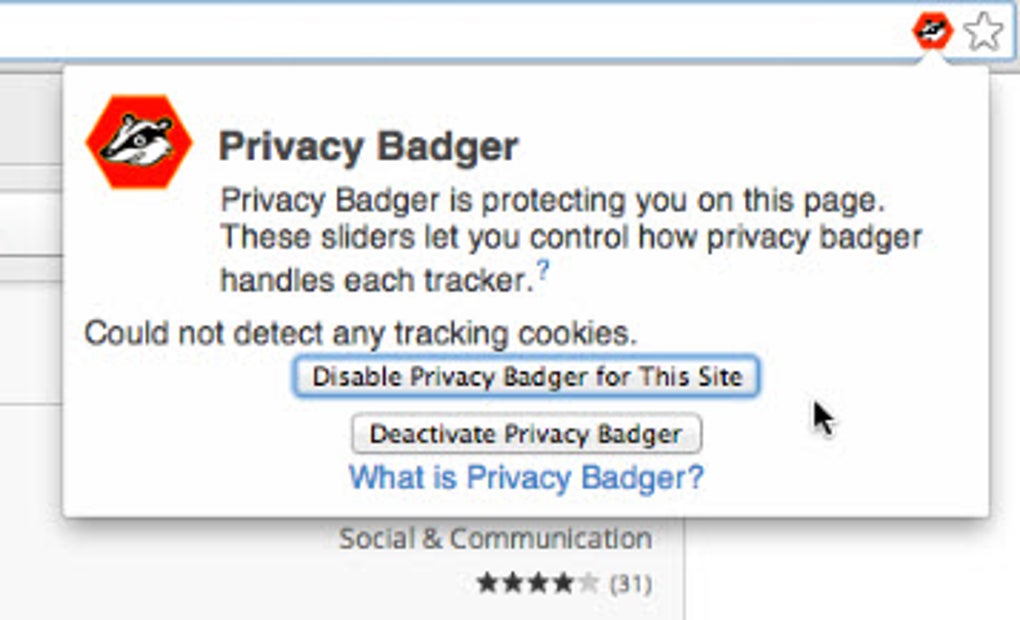
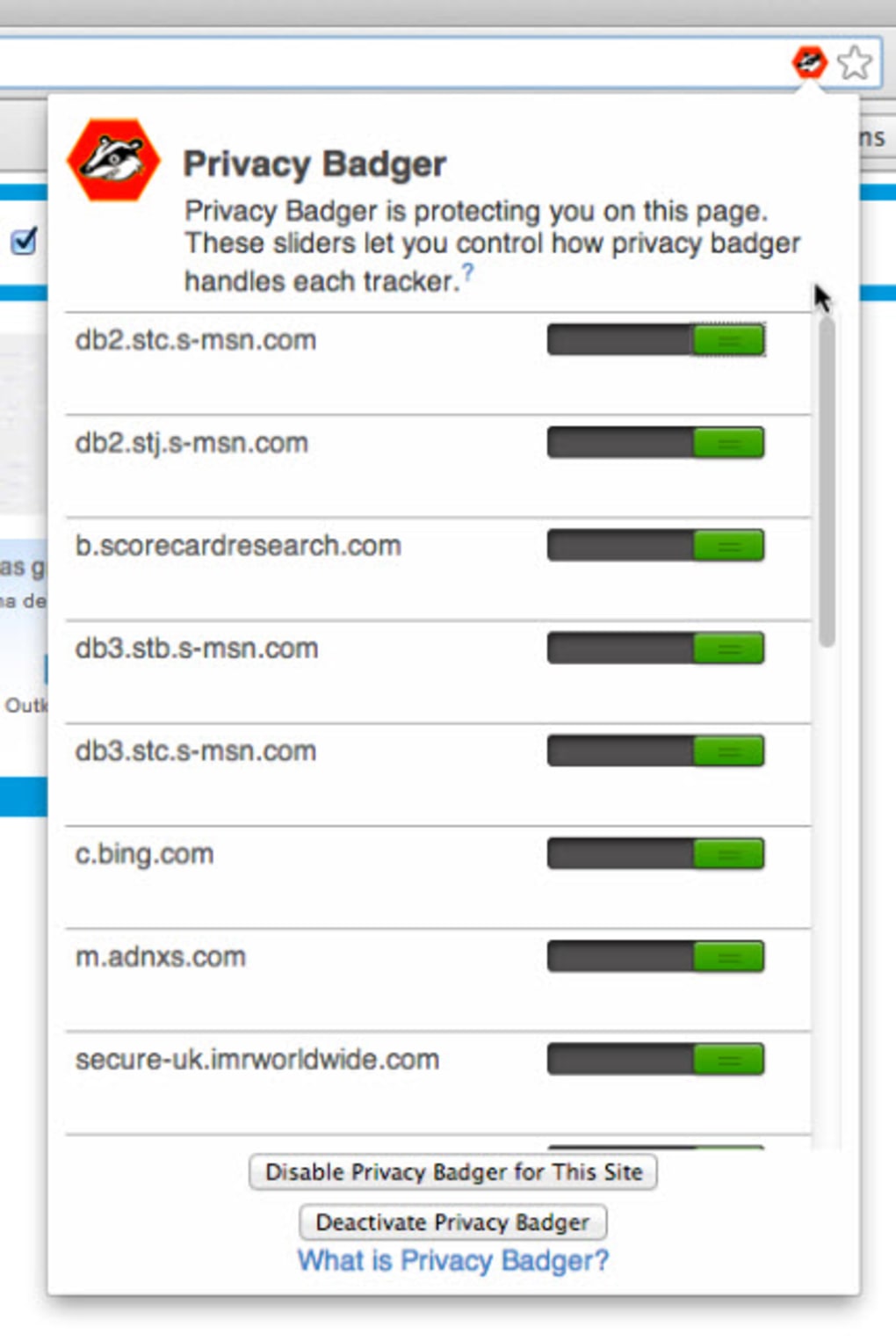
After installation, you’ll notice a subtle badge that changes color based on the blocking level for the current site: gray indicates no trackers detected, yellow shows soft blocks, and red signals hard blocks. Clicking the badge opens a small panel where you can:
- View a list of domains that have been blocked or partially blocked.
- Manually whitelist a domain if you encounter a site that breaks functionality due to blocking.
- Reset the learned data if you want to start fresh or troubleshoot.
Because Privacy Badger learns over time, you’ll see its effectiveness improve after a few days of regular browsing. If you want to accelerate the learning process, simply visit a variety of popular sites (news, social media, e‑commerce) – the extension will quickly identify the most common trackers and apply appropriate blocks. Remember to keep the extension updated; the automatic update mechanism ensures you benefit from the latest anti‑tracking heuristics without manual intervention.
Compatibility, Pros & Cons
Privacy Badger is compatible with the major desktop and mobile browsers on Windows, macOS, Linux, Android, and iOS. Specifically, it supports:
- Google Chrome (latest version)
- Mozilla Firefox (Quantum and later)
- Microsoft Edge (Chromium‑based)
- Apple Safari (macOS 12+ and iOS 15+)
- Opera (Chromium‑based)
Pros
- Free and Open‑Source: No hidden fees; community‑reviewed code.
- Automatic Learning: No need to maintain blacklists.
- Low Resource Usage: Minimal impact on system performance.
- Privacy‑First Design: No data is sent back to the developers.
- Cross‑Platform Support: Works on Windows, macOS, Linux, Android, and iOS.
Cons
- Initial Learning Curve: Takes a few days to become fully effective.
- Potential Site Breakage: Some sites may malfunction until you whitelist necessary domains.
- Limited UI Customization: The badge offers basic controls only.
- No Built‑In Ad Blocking: Focuses on trackers, not visual ads.
- Safari Extension Review Delays: Updates may be slower due to Apple’s review process.
Frequently Asked Questions
Is Privacy Badger completely free?
Yes, Privacy Badger is a free, open‑source extension. There are no hidden charges, premium tiers, or subscription fees.
Does Privacy Badger block ads as well as trackers?
Privacy Badger focuses primarily on blocking invisible trackers and data‑collecting scripts. While it may incidentally block some ad‑related requests, it is not designed as a full‑featured ad blocker. For ad‑blocking, you may combine it with a dedicated ad‑blocking extension.
Will using Privacy Badger slow down my browsing?
The extension has a very small memory footprint and adds only a minimal delay to page loads. In many cases, blocking trackers can actually speed up browsing because fewer external requests are made.
Can I see which trackers are being blocked on a specific site?
Yes. Click the Privacy Badger badge while on a page, and a dropdown will list all domains that have been blocked, soft‑blocked, or allowed for that site.
Is my browsing data ever sent to the EFF?
No. All learning occurs locally in your browser. Privacy Badger never transmits your browsing history or any personal data to the developers.
Conclusion & Call to Action
Privacy Badger stands out as a secure, free, and user‑friendly solution for anyone who wants to regain control over their digital footprint. Its adaptive learning engine eliminates the need for constant manual updates, while its open‑source nature guarantees transparency and community trust. Whether you’re browsing on Windows, macOS, Android, or iOS, the extension offers consistent protection against covert trackers without compromising site performance.
Ready to surf the web without being silently followed? Download Privacy Badger today and experience a cleaner, safer browsing experience. Remember to keep the extension updated to benefit from the latest privacy enhancements, and feel free to contribute to the project on GitHub if you’re passionate about open‑source privacy tools.







